If you’re a parent looking for an easy and stress-free way to help your child become a confident reader, this highly rated program is worth exploring.
Affiliate link – at no extra cost to you


Uploading files to an Amazon S3 bucket is a key task in modern web development, enabling developers to securely store and manage large amounts of data in the cloud. Amazon S3 (Simple Storage Service) is a highly scalable and reliable solution for file storage, making it an ideal choice for various applications, including web hosting, data backup, and content delivery. To programmatically upload files to an S3 bucket, developers can utilize the AWS SDK (Software Development Kit), which provides APIs to interact with AWS services from their applications. Here's an overview of the general process:
First, developers must create an AWS account and set up an S3 bucket. This can be done through the AWS Management Console or programmatically using the AWS CLI (Command Line Interface) or SDK. Once the S3 bucket is created, the next step is to integrate the AWS SDK into your application. For JavaScript-based applications, such as a web application or a Node.js server, developers can use the AWS SDK for JavaScript/Node.js. After integrating the SDK, developers need to configure it with their AWS credentials and specify the region where the S3 bucket is located. This typically involves creating an AWS IAM (Identity and Access Management) user with the appropriate permissions for accessing the S3 bucket and generating access keys.
With the AWS SDK properly configured, developers can use its APIs to upload files to the S3 bucket. The process involves specifying the file to be uploaded, the target S3 bucket, and the key (or file path) where the file will be stored. The SDK handles the process of uploading the file to S3, including authentication, encryption, and error handling. Once the file upload is completed, the file is securely stored in the S3 bucket and can be accessed or managed via the AWS Management Console or programmatically using the SDK.
For web applications requiring integration with Amazon S3 for file uploads, particularly when using PHP or frameworks like Laravel, several configuration steps are necessary. Here’s a breakdown of the required steps:
Once these configurations are in place, you’ll be ready to upload files to your S3 bucket from your Laravel application or even from a simple PHP setup without any framework. To begin, log in to your AWS account and follow the detailed configuration steps above. Afterward, you’ll be able to upload files, images, and other content to your S3 bucket, either via a Laravel application or a custom PHP solution.
Some time what happened you know we Configure basic things and after successful TEST We can enable change other option configuration.
If you’re a parent looking for an easy and stress-free way to help your child become a confident reader, this highly rated program is worth exploring.
Affiliate link – at no extra cost to you
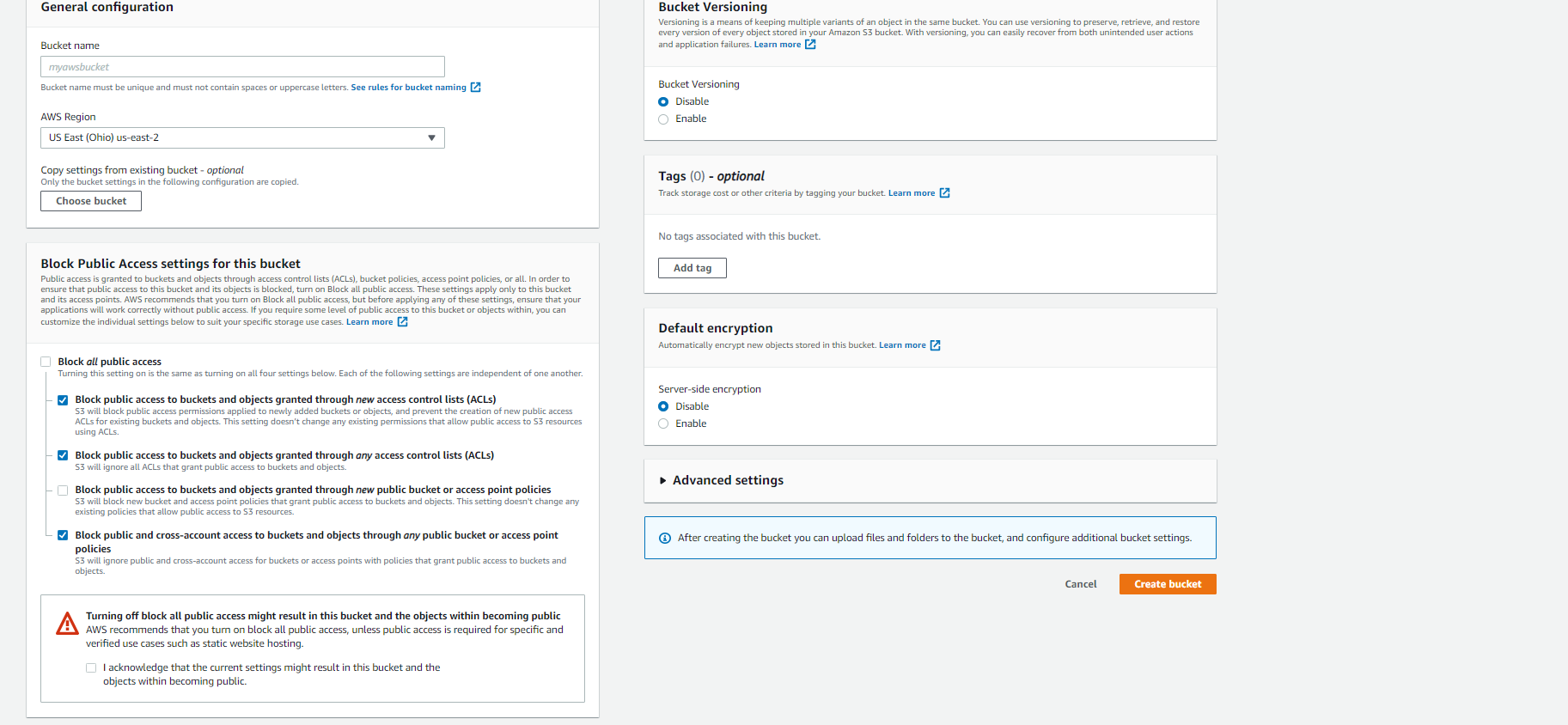
If you want only a TEST then when you are creating a s3 bucket just on this section "Block Public Access settings for this bucket" change and rest of things will be default. Click on create bucket your bucket will be created and listed there.

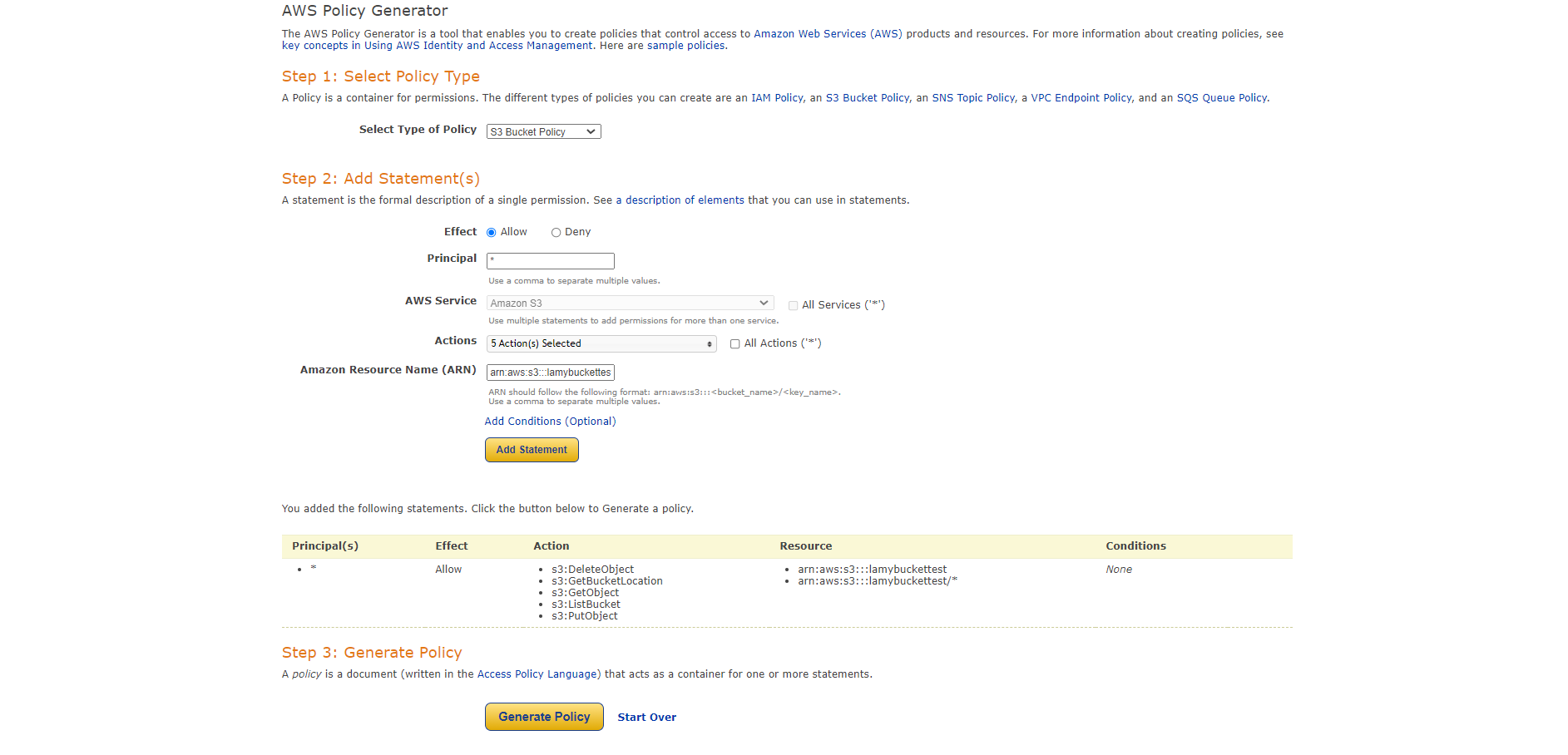
{
  "Id": "Policy1628443556664",
  "Version": "2012-10-17",
  "Statement": [
    {
      "Sid": "Stmt1628442118799",
      "Action": [
        "s3:DeleteObject",
        "s3:GetBucketLocation",
        "s3:GetObject",
        "s3:ListBucket",
        "s3:PutObject"
      ],
      "Effect": "Allow",
      "Resource": [
        "arn:aws:s3:::lamybuckettest",
        "arn:aws:s3:::lamybuckettest/*"
      ],
      "Principal": "*"
    }
  ]
}
[
    {
        "AllowedHeaders": [
            "Authorization"
        ],
        "AllowedMethods": [
            "PUT",
            "POST",
            "GET"
        ],
        "AllowedOrigins": [
            "*"
        ],
        "MaxAgeSeconds": 3000
    }
]
<!DOCTYPE html>
<html>
<body>

<form action="upload.php" method="post" enctype="multipart/form-data">
  Select image to upload:
  <input type="file" name="userfile" id="userfile">
  <input type="submit" value="Upload Image" name="submit">
</form>
</body>
</html>
composer require aws/aws-sdk-php
<?php

	require './vendor/autoload.php';
	use Aws\S3\S3Client;
	use Aws\S3\Exception\S3Exception;

	$bucketName = 'BUCKENAME';
	$IAM_KEY = 'KEY';
	$IAM_SECRET = 'SECREATKEY';

	try {
		$s3 = S3Client::factory(
			array(
				'credentials' => array(
					'key' => $IAM_KEY,
					'secret' => $IAM_SECRET
				),
				'version' => 'latest',
				'region'  => 'youregion',
				'http'    => [
					'verify' => false
				]
			)
		);
	} catch (Exception $e) {
		die("Error: " . $e->getMessage());
	}

	$uload_file=$_FILES["userfile"];
	$fileURL = $uload_file['name'];
	$tempFilePath=$uload_file['tmp_name'];

	$keyName = 'userprofile/' . basename($fileURL);
	$pathInS3 = 'https://s3.us-east-2.amazonaws.com/' . $bucketName . '/' . $keyName;

	try {
		$fileContents = file_get_contents($fileURL);
		$s3->putObject(
			array(
				'Bucket'=>$bucketName,
				'Key' =>  $keyName,
				'SourceFile' => $tempFilePath,
				'StorageClass' => 'REDUCED_REDUNDANCY'
			)
		);
	} catch (S3Exception $e) {
		die('Error:' . $e->getMessage());
	} catch (Exception $e) {
		die('Error:' . $e->getMessage());
	}
's3' => [
	'driver' => 's3',
	'key' => env('AWS_ACCESS_KEY_ID'),
	'secret' => env('AWS_SECRET_ACCESS_KEY'),
	'region' => env('AWS_DEFAULT_REGION'),
	'bucket' => env('AWS_BUCKET'),
	'url' => env('AWS_URL'),
	'endpoint' => env('AWS_ENDPOINT'),
	'use_path_style_endpoint' => env('AWS_USE_PATH_STYLE_ENDPOINT', true),
	 'scheme' =>'http',
]
Add Below Code to .env configuration file
AWS_ACCESS_KEY_ID=Your_Access_Key
AWS_SECRET_ACCESS_KEY=Your_Secret_Key
AWS_DEFAULT_REGION=Your_Resion
AWS_BUCKET=BucketName
AWS_USE_PATH_STYLE_ENDPOINT=false
Your controller code goes like below
<?php

use App\Http\Controllers\Controller;
use Illuminate\Http\Request;
use Illuminate\Support\Facades\Storage;

class ImageUploadController extends Controller
{
    public function index(){
        return view('front.image_upload');
    }
    /**
     * Display a listing of the resource.
     *
     * @return \Illuminate\Http\Response
     */
    public function upload_post_image(Request $request)
    {
        $request->validate([
            'image' => 'required|image|mimes:jpeg,png,jpg,gif,svg|max:2048',
        ]);
        if($request->hasfile('image')){
            $file = $request->file('image');
            $imageName=time().$file->getClientOriginalName();
            $filePath = 'images/' . $imageName;
            Storage::disk('s3')->put($filePath, file_get_contents($file));
	        return back()->with('success','You have successfully upload image.');
        }
    }
}
Your laravel view will goes like below , You can make it proper , this is just a example for understanding. also add route to your web , so that you can access and process form submittion.
<html lang="en">
<head>
  <meta charset="utf-8">
  <link rel="stylesheet" href="https://maxcdn.bootstrapcdn.com/bootstrap/3.4.1/css/bootstrap.min.css">
  <script src="https://ajax.googleapis.com/ajax/libs/jquery/3.4.1/jquery.min.js"></script>
  <script src="https://maxcdn.bootstrapcdn.com/bootstrap/3.4.1/js/bootstrap.min.js"></script>
</head>
<body>
 <div class="container">
 <div class="row">
 </div>
        <form action="{{ route('upload.post.image') }}" method="POST" enctype="multipart/form-data">
            @csrf
            <div class="row">
                <div class="col-md-6">
                    <input type="file" name="image" class="form-control">
                </div>

                <div class="col-md-6">
                    <button type="submit" class="btn btn-success">Save To S3</button>
                </div>
            </div>
        </form>
 </div>
</body>
</html>